01 / USB
One cable to your computer.
Connect to your computer with your own USB-C data cable. It supplies power and updates the light. A charge-only cable cannot establish a USB data connection.
 VibeCodingLight
A DESK STATUS LIGHT FOR YOUR AI CODING ASSISTANTS
Is your AI assistant working, or waiting for you?
Skip the tab switching. Just glance at your desk.
Steady green: A session is working, with no idle or waiting sessions.
A 3D-printed robot with a single USB-C port on the back. Rotate it and try the eye colors.
USB + BLUETOOTH
Connect to your computer via USB, or plug into a power bank and use Bluetooth.
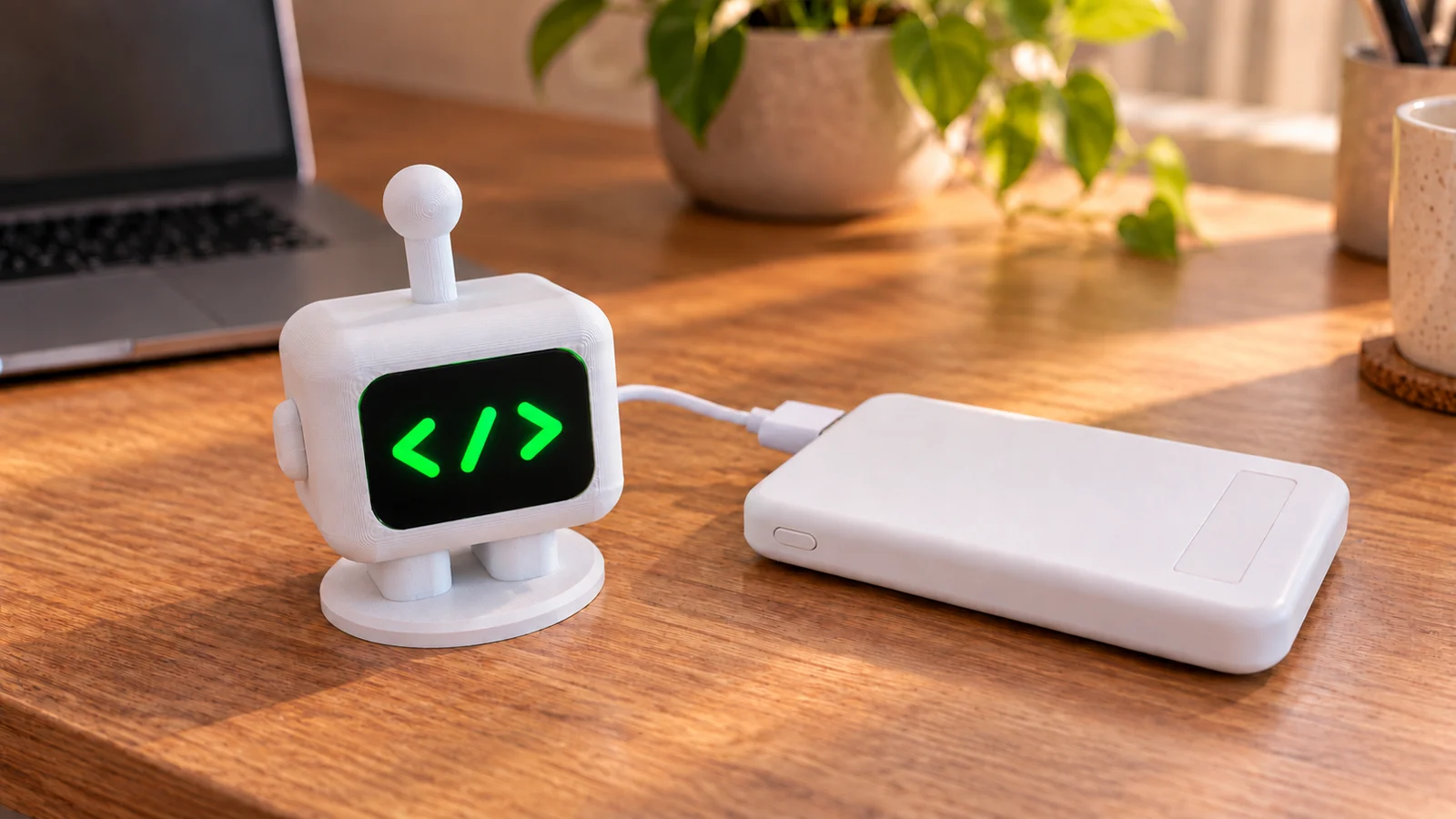 Bluetooth supported
Connect to your computer with your own USB-C data cable. It supplies power and updates the light. A charge-only cable cannot establish a USB data connection.
Connect the robot to your power bank with your own USB-C charging cable. The app on your computer updates the light over Bluetooth. Place the light anywhere within Bluetooth range.
When a USB data connection is available, the robot uses USB automatically.
Connection guideUSB cable and power bank are not included. The robot has a USB-C port. Use a data cable to connect to your computer, or a charging cable to power it from a power bank.
The texture of 3D printing, interchangeable faceplates and a little space on your desk.
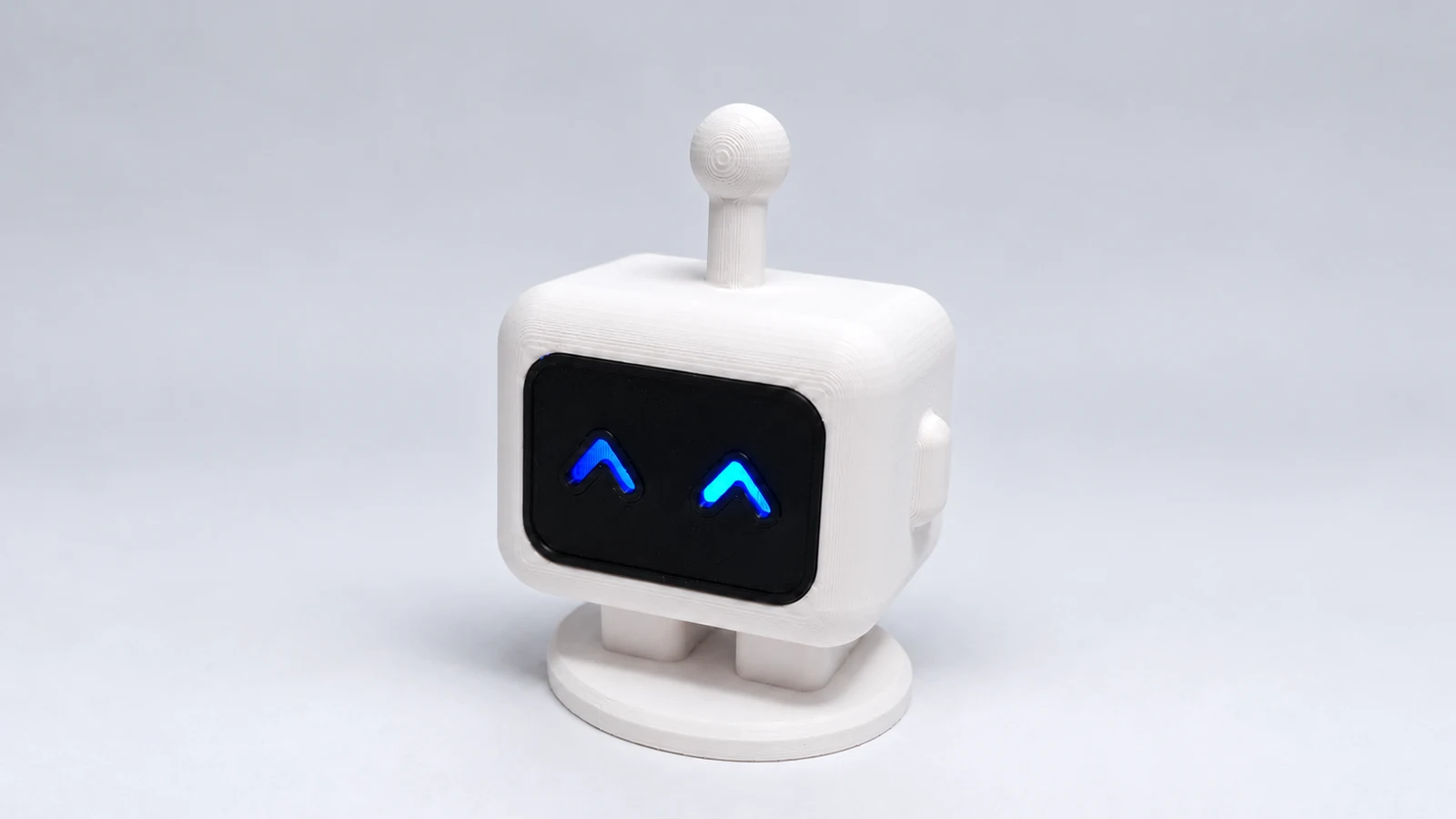
Product photo backgrounds and lighting have been edited with AI.
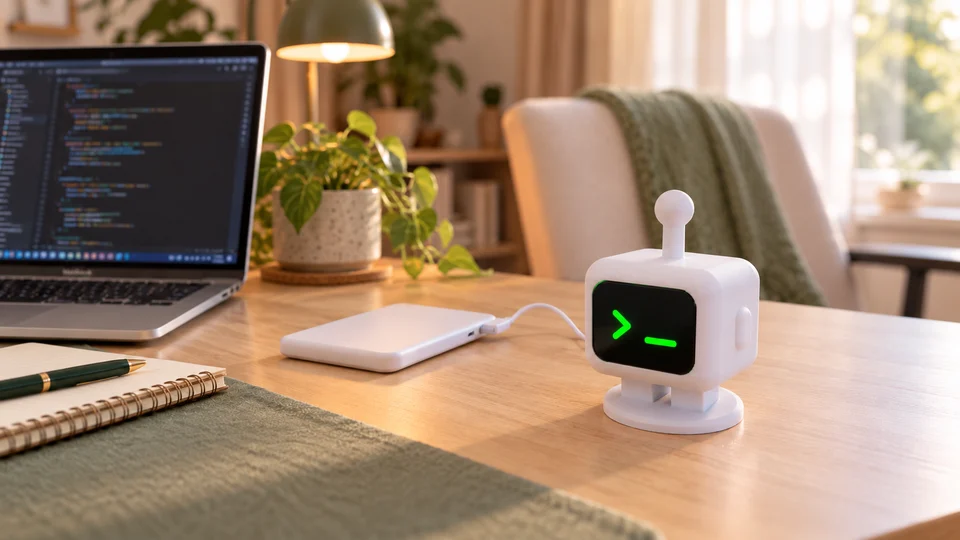
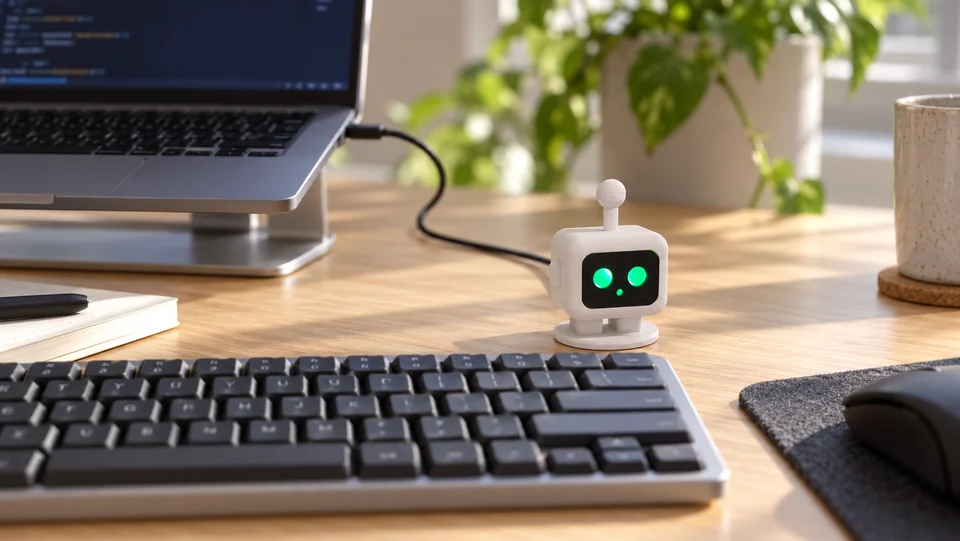
Illustrative desk scenes created with AI.
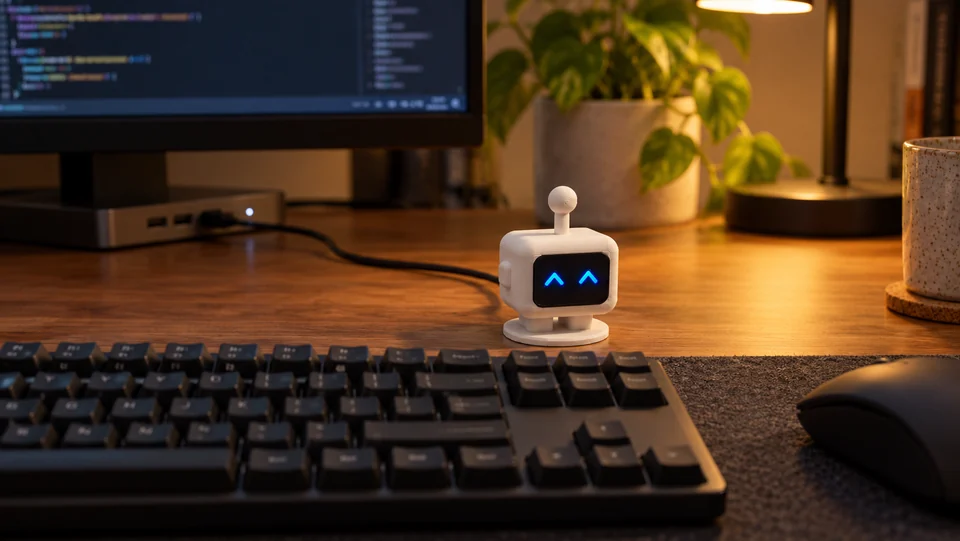
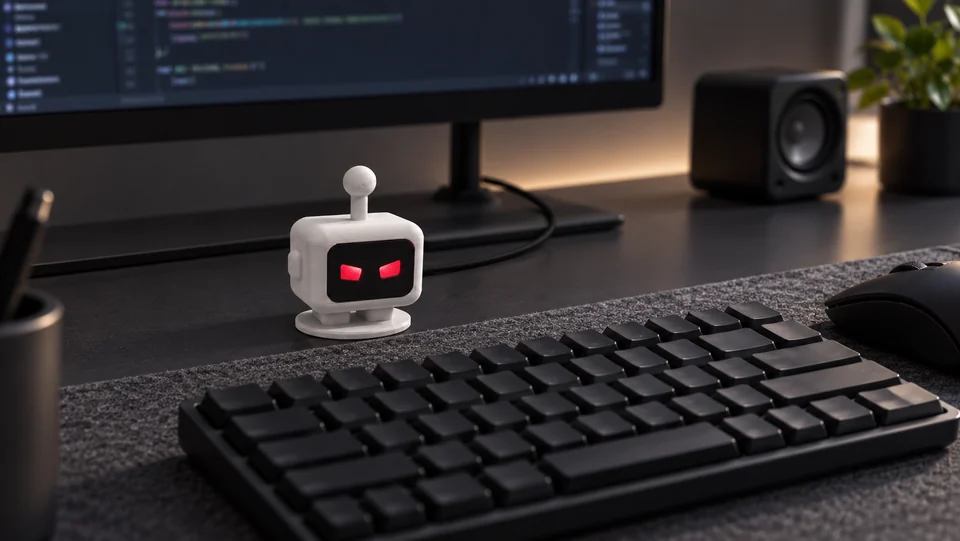
A LITTLE LIGHT. A LOT OF CONTEXT.
No need to check every terminal.
VibeCodingLight brings your session statuses into one light.
Your attention comes first. If a session needs you, red takes priority even while others work. Working and idle sessions together produce steady yellow.
A LITTLE ADDITION TO YOUR DESK
Connect to your computer with a USB data cable, or power it from a power bank and use Bluetooth.
Install VibeCodingLight. Select your device, run the color test and enable your assistant's integration.
Approve the assistant connection if prompted and start a new session. The app runs in the background while the light shows what your assistant is doing.
WITH THE TOOLS YOU KNOW
In your terminal or on your desktop. Your supported sessions come together in one light.
Terminal sessions
Desktop sessions
Terminal sessions
Local Code tab only
Local sessions
Beta · local agent working/idle tracking
Beta · working/idle and ask_question tracking
Integration behavior may vary by assistant version and session type. Claude Chat, Cowork and remote/WSL sessions are not supported.
Copilot beta tracks working and idle states. Antigravity beta also tracks ask_question prompts; other permission and approval waits are not included. Explore beta coverage
THE OTHER HALF OF YOUR BUDDY
The connection between your assistants and your robot. Set it up and let the light follow your work.
The app lives in the Windows system tray. No separate .NET, Node.js or Arduino IDE installation needed.
Paste into PowerShell:
irm https://www.vibecodinglight.com/install.ps1 | iexDownloads, verifies and installs the current Windows package. Then choose your assistant in the app.
Adjust brightness in the desktop app to suit your desk and working hours.
The desktop app determines your robot's behavior. You can inspect its source code on GitHub.
Explore on GitHub ↗USB carries power and data in one cable. With Bluetooth, a power bank supplies power. See your active connection in the app’s Device card.
The app processes status events without forwarding prompts or replies. Session information stays on your computer.
WHAT'S INSIDE THE BOX?
The app on your computer changes the robot’s light to match what your assistant is doing. The VibeCodingLight app is required.
Robot + your selected first faceplate (included)VibeCodingLight Original. Your selected first faceplate is included. USB cable and power bank are not included. Use your own USB-C data cable for your computer, or a USB-C charging cable for your power bank.